Three ways to hear about new openings without checking the site
A bell link on a listing, a saved search carrying your filters, and a private calendar link for what you already said yes to. What each one sends, and who each one suits.
The listing you would have said yes to went up on a Tuesday and came down about five weeks later. Somewhere in that stretch you were dealing with the roof, or the kids, or a run of night shifts, and by the time you thought to look again it had gone.
That is not a character flaw. Remembering to check a website is a small unpaid job, and it loses out to everything else. Here are three ways to hand the remembering over.
The bell link, when you would rather not sign in
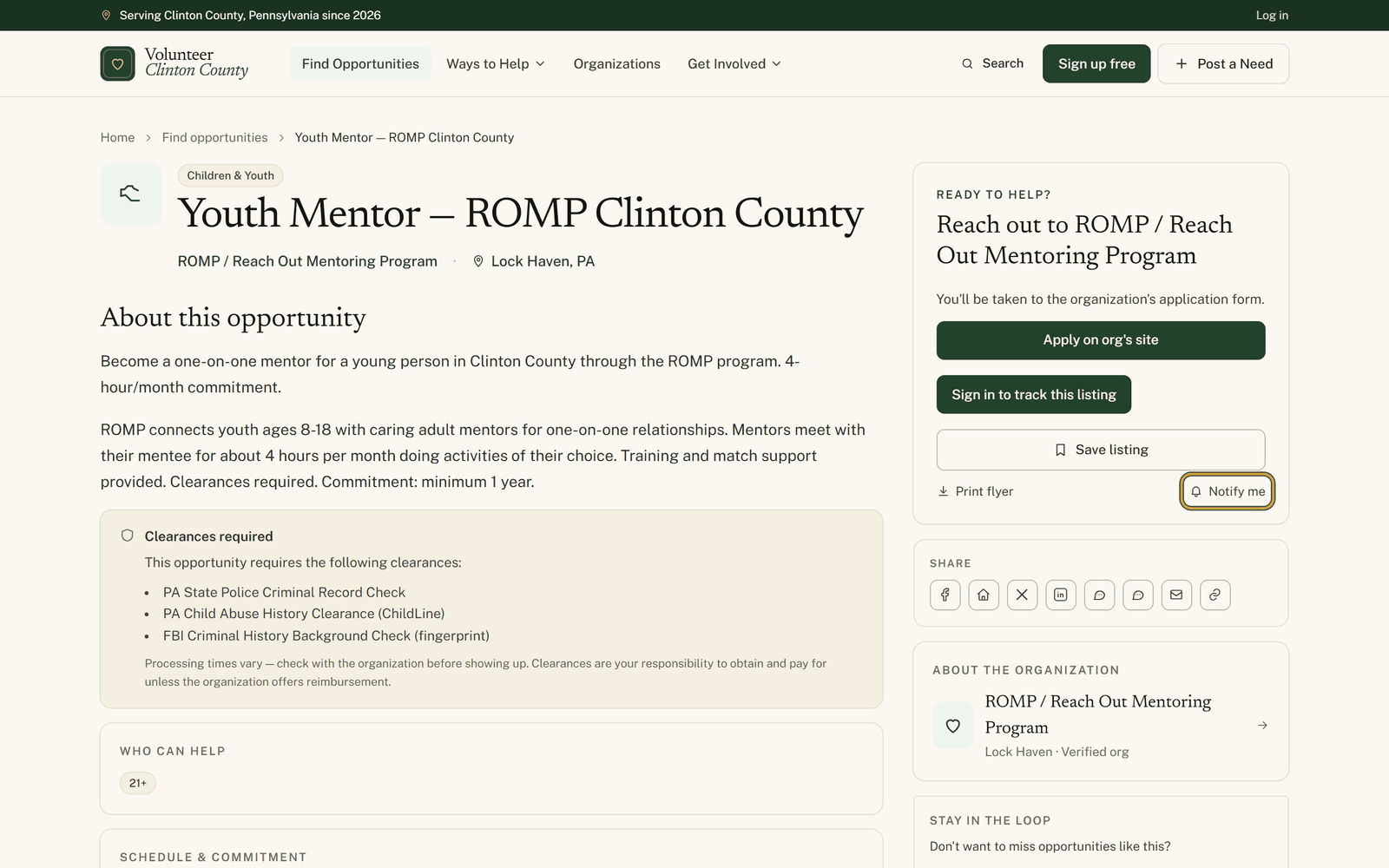
Every volunteer listing has a "Ready to help?" card beside the description, and at the bottom of it, next to "Print flyer", sits a small link reading "Notify me". Click it and a box appears asking for your email address. Type it, press the button again, and you are done. No account is made, no password exists, and the organization is not told you looked.
What you get is a Friday email with up to five new opportunities, and only in the weeks when something matched.
The thing to understand is where its filter comes from. There is no menu of causes anywhere in that form. The alert copies the cause and the town off the listing you were reading, and a new listing has to match both. So pick the listing you sign up from on purpose. If the confirmation line names no cause, that listing had none set, and you will hear about everything new instead of a narrower slice. It covers volunteer opportunities only, so events, donation drives and board openings come through a different door.
A saved search, when you know exactly what you want
Filter the opportunities page first. Weekends, no clearances, within fifteen miles, whatever your version is. Green badges appear above the results, and a box headed "Save this search" appears with them. Name it, choose Daily or Weekly, press "Save".
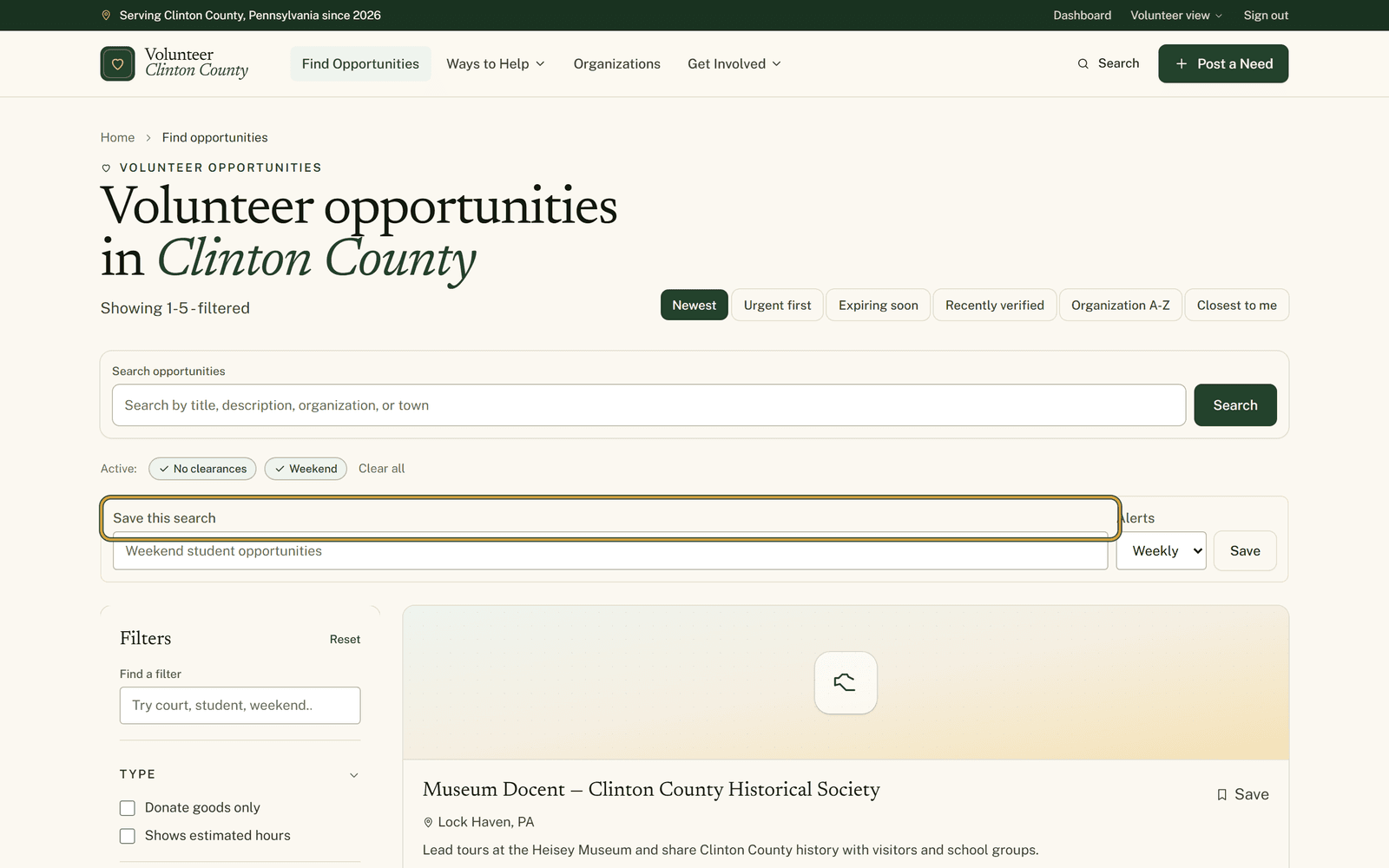
This one needs an account, and it needs at least one filter switched on, because an unfiltered page has nothing to save. In return it keeps far more than the bell link does: your keywords, your causes, the town and radius from the Distance section, and the requirement boxes you ticked. The email carries up to eight listings and is headed with the name you gave the search.
Both of these mail you only what is new since last time. A listing already on the site the day you signed up will never arrive by email, which is why pressing "View" on a saved search now and then is still worth doing.
The calendar link, for what you already agreed to
The third one solves the other half of the problem. Once you have said yes to something three weeks out, the risk moves from missing the listing to forgetting the date.
Your settings page has a "Calendar subscription" card. Press "Generate link" and it hands you one long, private web address that Google, Apple or Outlook Calendar can subscribe to. After that, everything sitting in your Going group turns up on its own date, beside your work shifts and the ball games.
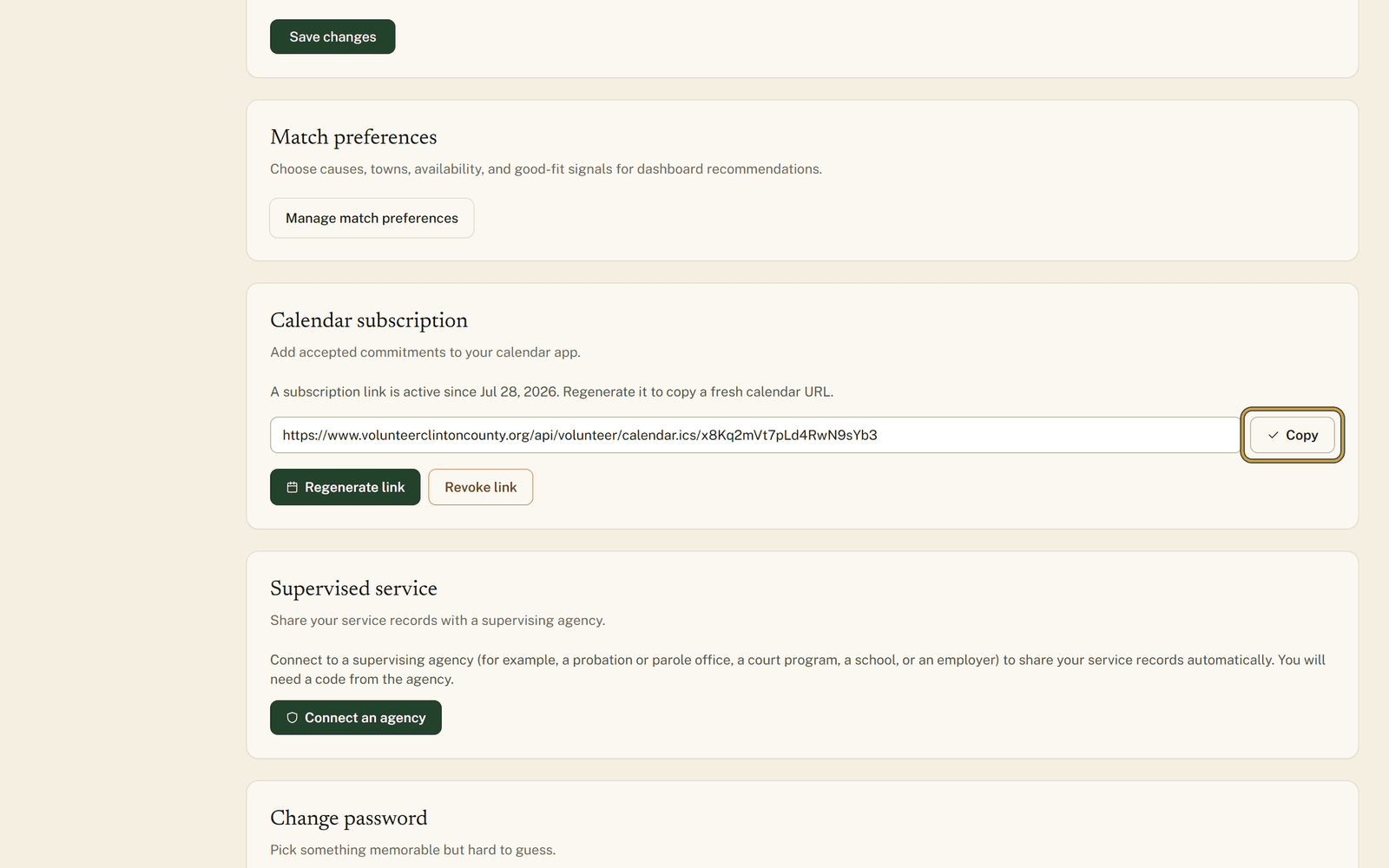
Copy that address the moment it appears, because the site keeps only a scrambled copy and cannot show it to you twice. Only the Going group rides along, anything you marked Interested stays behind, and a listing with no date on it gets skipped, since a calendar entry needs a day to sit on. Nothing you type in your own calendar app travels back here.
Each of the three has its own walkthrough with pictures: the bell link at https://www.volunteerclintoncounty.org/help/email-alerts-no-account, saved searches at https://www.volunteerclintoncounty.org/help/saved-searches, and the calendar link at https://www.volunteerclintoncounty.org/help/personal-calendar-feed
Pick whichever suits how much you want to be involved. Twenty seconds on a bell link is a perfectly good answer.