The search box inside the filter panel that nobody notices
The opportunities page carries eleven sections of filters. There is a small box at the top of them that finds the one you want when you type a word like outside, court or saturday.
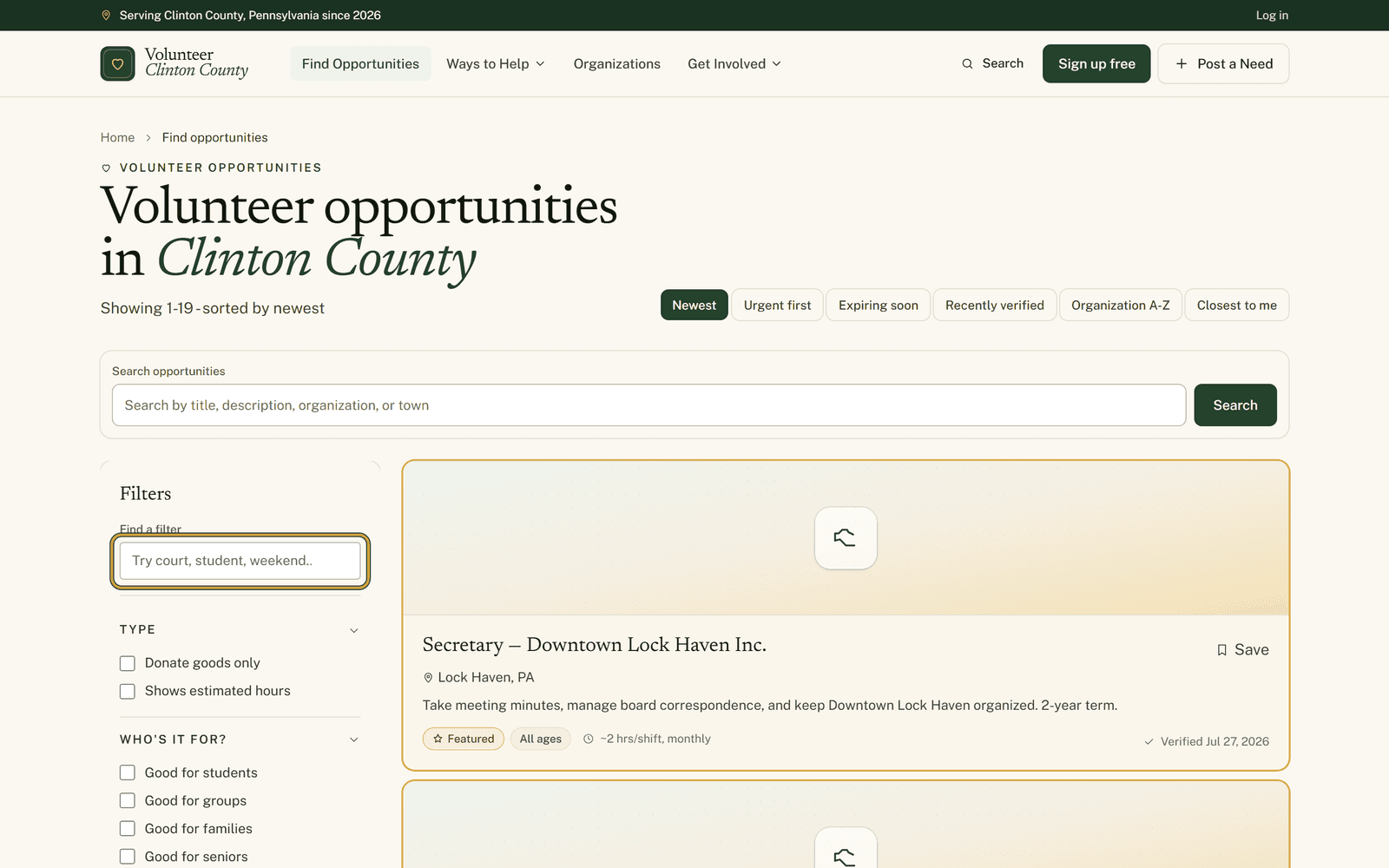
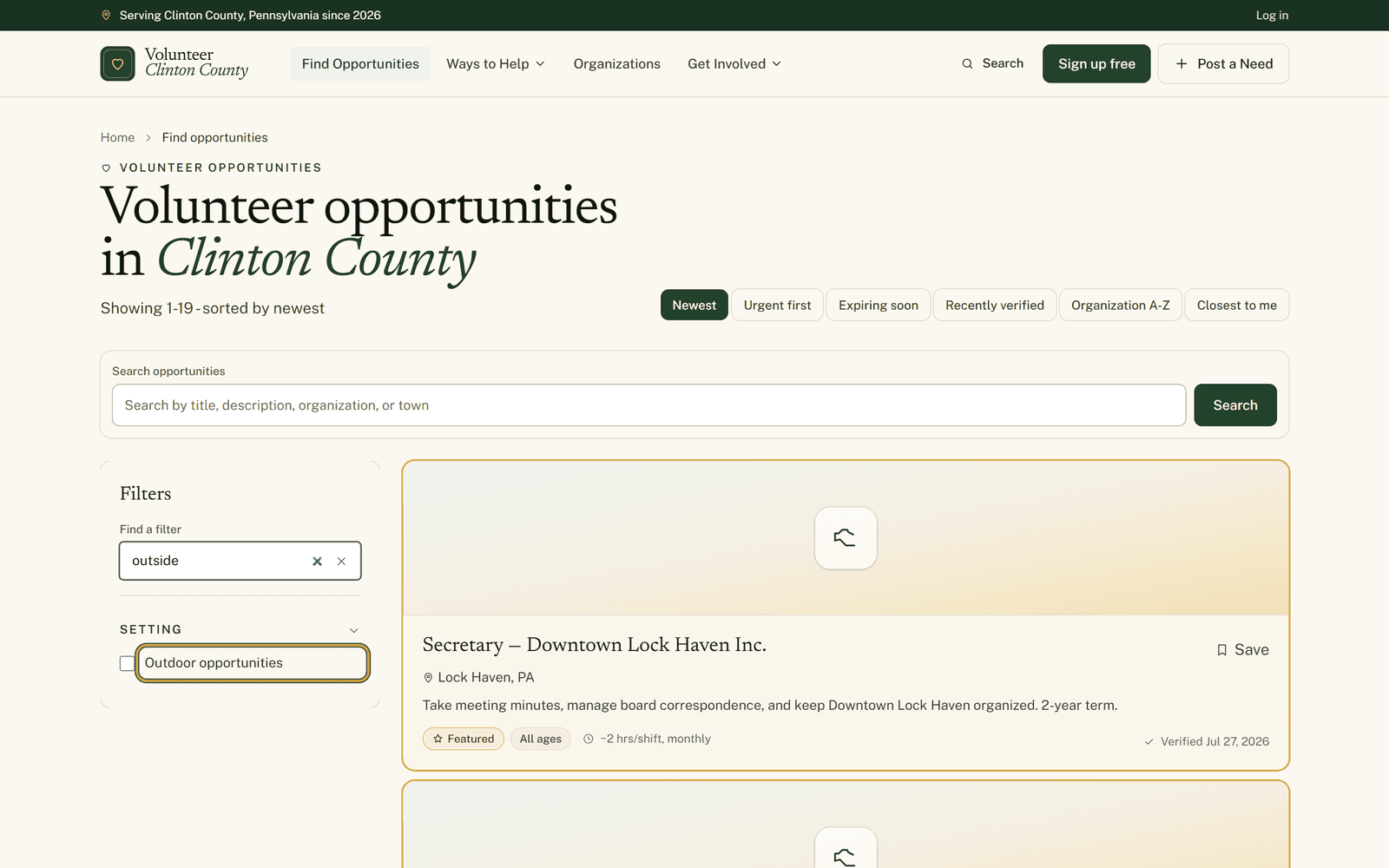
Open the volunteer opportunities page and type one word into the small box at the top of the filter panel: outside. Eleven sections of filters drop away at once. What is left standing is "Outdoor opportunities", sitting under "Setting", with that section already open and its checkbox waiting.
The box is labeled "Find a filter" and starts out reading "Try court, student, weekend...". It sits above every filter on the page, and most people scroll straight past it.
Eleven sections, none of them named outdoors
A retired machinist in Avis wants outdoor work. He opens the opportunities page and the filter panel runs down the left side: Type, Who's it for?, Cause, Location, Distance, Date range, Schedule, Requirements, Setting, Volunteer age, Organization type. Nothing in that list says outdoors. To find where it hides he would have to open all eleven, and he is not going to.
That is the whole problem. People arrive with a word already in their head. Outside. Court. Saturday. The site has its own words printed on its own checkboxes, and the two do not always match.
What the box is searching
Filter names, plus a short list of everyday words carried behind each one. Outside finds "Outdoor opportunities". Probation finds "Court-ordered service accepted". Saturday finds "Weekend opportunities". Type the word you would say out loud and it usually lands.
One word works better than two. Type food pantry and the panel answers "No filters match that search." Type food and the Food & Hunger cause appears. Because the box reads filter names rather than listing text, a word like pantry or Renovo belongs in the "Search opportunities" box above the results instead. Different box, different job.
Distance and Date range behave unlike the rest of the panel. They hold pickers rather than checkboxes, so there are no options inside them to match against, and they answer to a short fixed list of words instead. Type distance and the Distance section opens. Type date or range for Date range. Type miles or town and neither one shows up.
What the panel does while you type
Any section holding a match opens on its own, including the ones that start out collapsed, so the thing you were after is visible rather than buried. Clear the box with the x at its right, labeled "Clear filter search", and the sections go back to how you had them. "Reset" is the other button in the panel, and it does a different job: it drops the filters you actually ticked.
Ticking is the part that moves the listings. Typing narrows the filter panel and nothing else, so if you type outside and the results sit there unchanged, that is why. The box walks you to the checkbox. You still have to tick it.
On a phone it works the same way
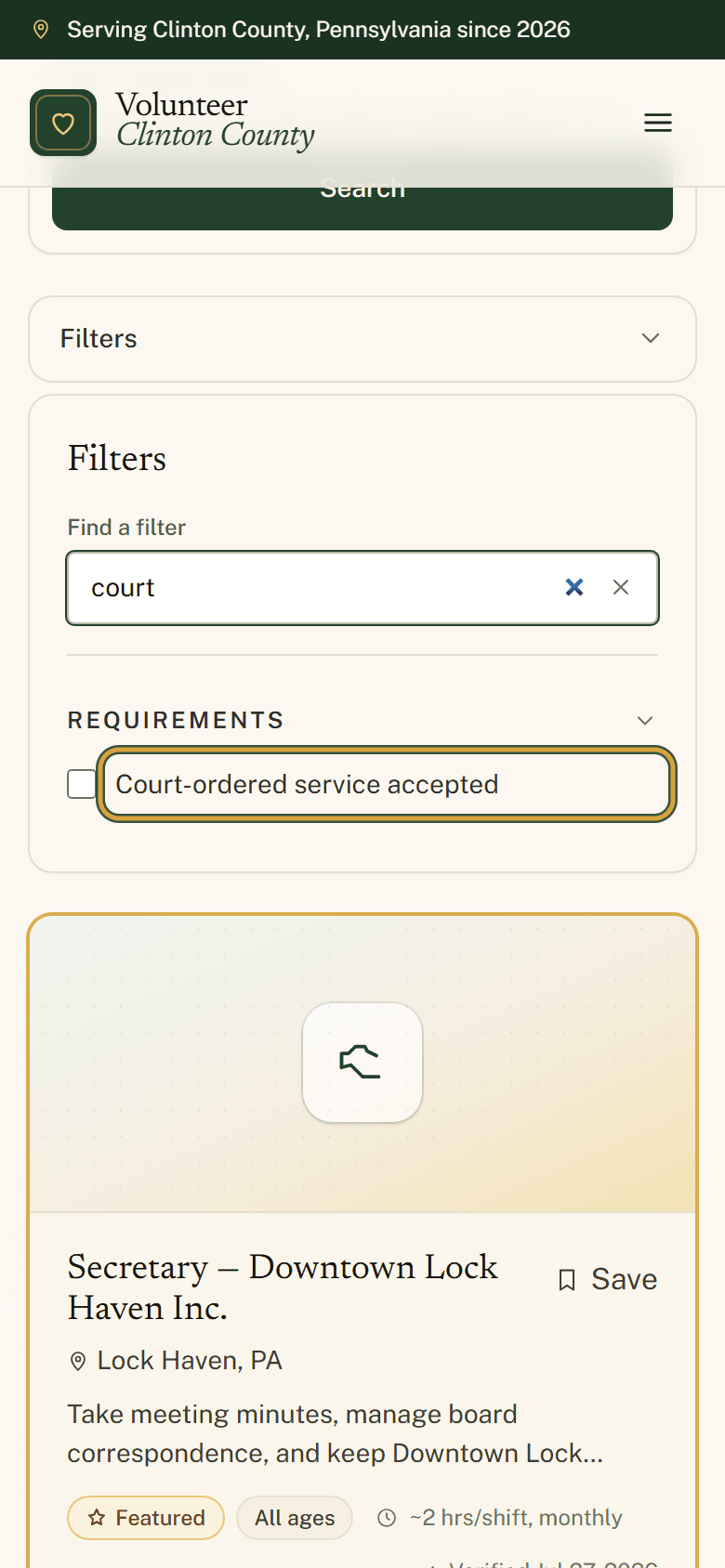
Tap "Filters" to open the panel, then type into the box the same as you would on a computer.
There is a walkthrough with a screenshot at every step on the help page: https://www.volunteerclintoncounty.org/help/filter-finder
The machinist typed a word he already had. One checkbox later, what was in front of him was the outdoor work instead of the desk shifts.