Save a volunteer search and stop checking back
Set the filters once, name the search, choose Daily or Weekly. New matches come to you by email. What it sends, when it sends, and the one thing it never sends.
Most people hear "saved search" and picture a standing order: everything on the site that fits my description, delivered to me. That is not the deal here, and it is worth knowing before you set one up.
What arrives by email is what is new. A listing that was already sitting on the site the day you saved the search will never be mailed to you, however well it matches. To see the whole set, you press "View" on the search and read the results yourself.
With that said, the thing it does do is the part most people need.
The search you keep re-typing
You know your version. Weekends only, because the week is spoken for. Nothing that needs clearances, or nothing that does not. Within fifteen miles of the house. You tick the same boxes every few weeks, look at the same listings you looked at last time, and close the tab.
Where the box hides
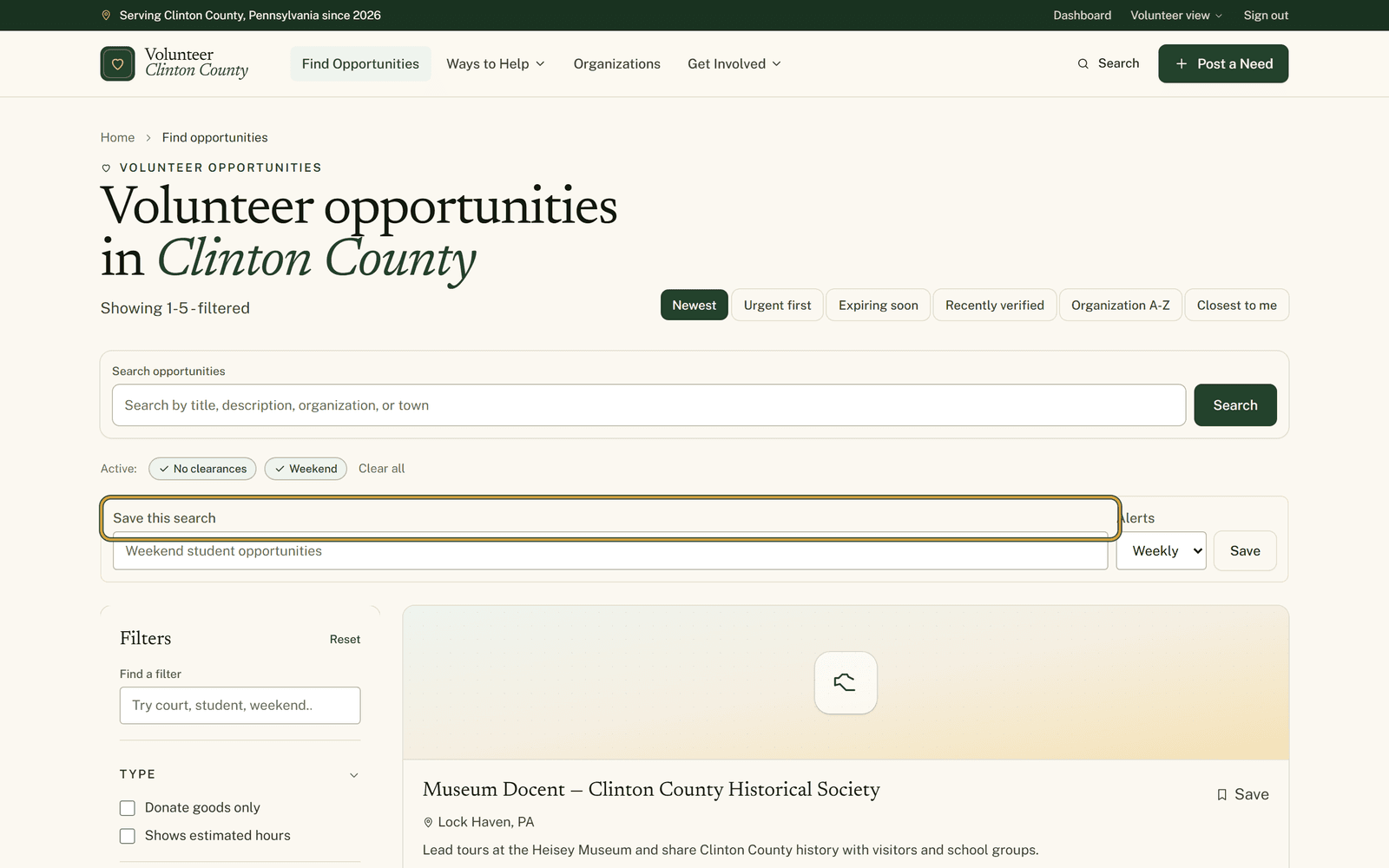
Filter the opportunities page down first. Green "Active:" badges appear above the results showing what you switched on, and a box headed "Save this search" appears with them. On a page with no filters running there is nothing above the results and no box, which is why some people never see it. Trying to save an empty search answers "Choose at least one filter before saving this search."
You need to be signed in. Signed out, the spot reads "Sign in to save this search" instead.
Give the search a name of your own, in the spirit of the greyed-out "Weekend student opportunities". Set "Alerts" to Weekly or Daily, press "Save", and a line confirms it went through.
What actually lands in your inbox
An email headed New VCC matches for whatever you named the search, carrying up to eight listings. The sending job runs once a day. A Daily search waits at least twenty hours between messages and a Weekly one about six and a half days, and on any run where nothing new fits, no email goes out. Silence usually means a quiet week rather than a broken alert.
The filters that ride along are the ones you had on, including keywords, cause, town, ZIP and radius. Sorting by closest is not kept as a sort setting, though the distance you set still shapes what the emails carry.
Changing your mind later
"Saved searches" in the volunteer menu holds every one you have made, each card carrying a badge for the filters it kept and one reading "Alerts: Weekly" or "Alerts: Off".
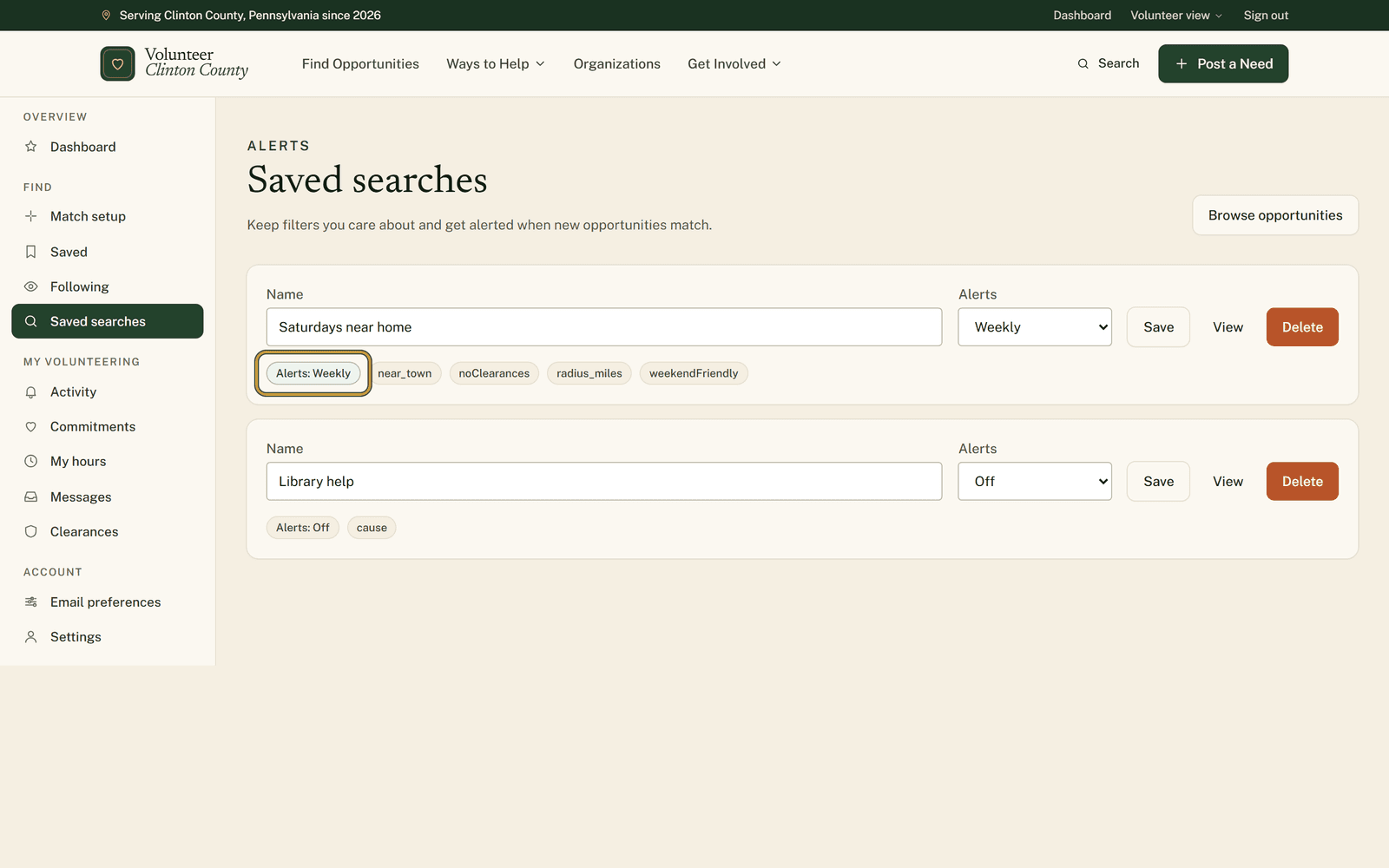
Rename it there, switch the alert to Off and keep the search for browsing, press "View" to run it now, or press "Delete". Names have to differ from each other, so a second "Saturdays" comes back asking for something else. Adding the town usually sorts it.
Screens for each of those presses are laid out in order at https://www.volunteerclintoncounty.org/help/saved-searches
Three twelve-hour shifts a week leave a nurse in Mill Hall one day she can realistically give, and it is a Saturday. She sets the filters once, saves it as Saturdays near home with alerts on Weekly, and stops looking. When something Saturday-shaped gets posted, it comes to her.