The promotion kit that comes with every published listing
Captions you can paste, share images sized for feeds and stories, a printable QR flyer, and reusable QR codes you can re-point without reprinting. All on one page per listing.
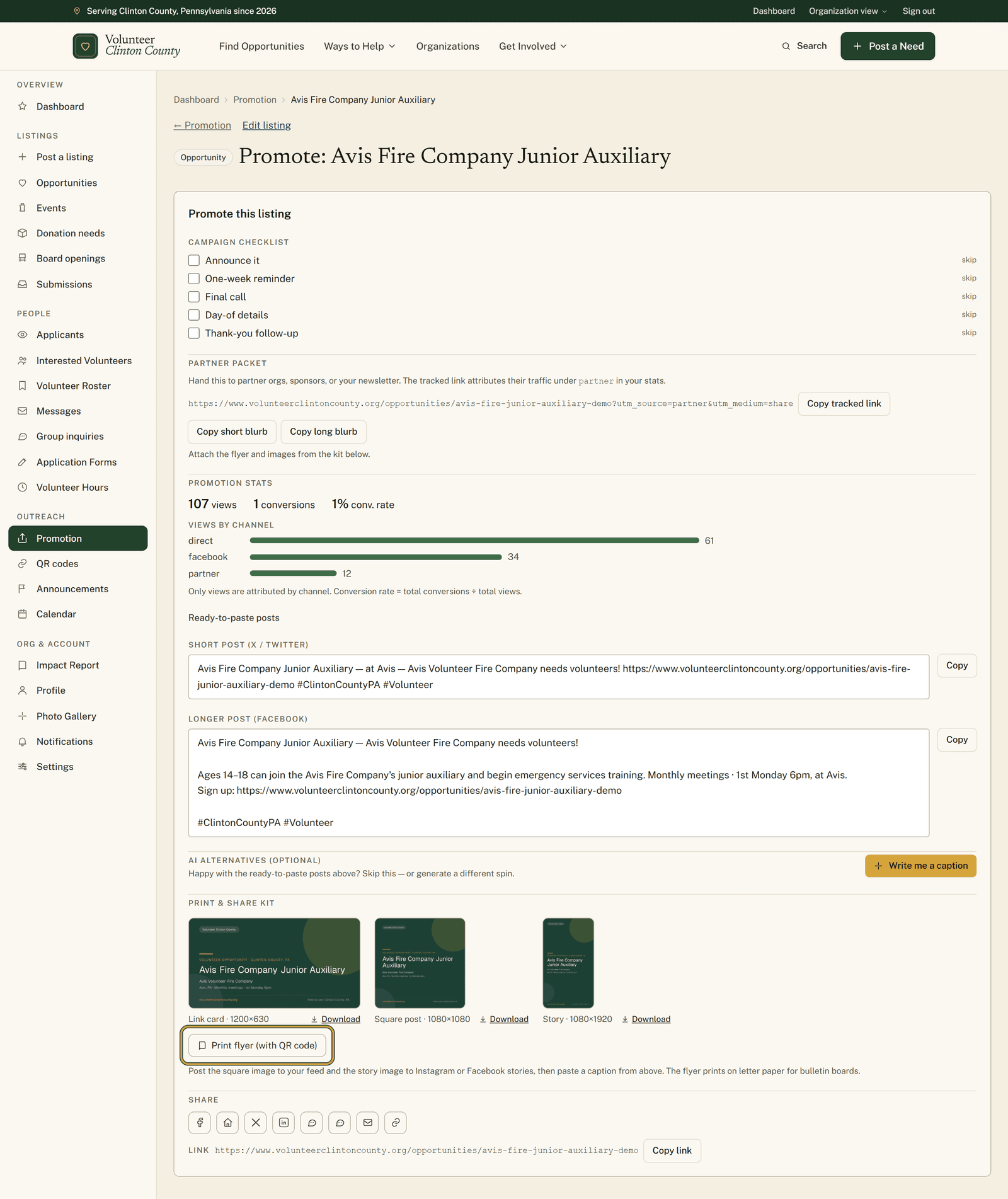
Open the promotion page for a published listing and the parts are already laid out. A short post and a longer post, both written from the listing you filled in, each with a "Copy" button beside it. Three share images to download: "Link card · 1200×630", "Square post · 1080×1080" and "Story · 1080×1920". A flyer that prints on letter paper with a QR code in the corner. A campaign checklist. A running view count. And a partner packet with a tracked link, so views arriving through a sponsor show up separately in the Views by channel list.
Why that pile exists
A fire company auxiliary in Avis puts its spring chicken barbecue on the site as an event. The listing takes one sitting: the date, the time, what to bring, who to call if you want to help serve.
Then the same words have to go on the Facebook page, into the church bulletin that closes Thursday, up on the corkboard at the borough building, and onto a table tent by the register at a store in Mill Hall, because that is where people actually stop. One event, four shapes. The evening goes to the fifth rewrite, a phone photo cropped by eye, and a flyer that may or may not print straight. Ask whoever handles the Facebook page at a small organization and they will tell you the writing was never the part that ate the time.
Getting to the page
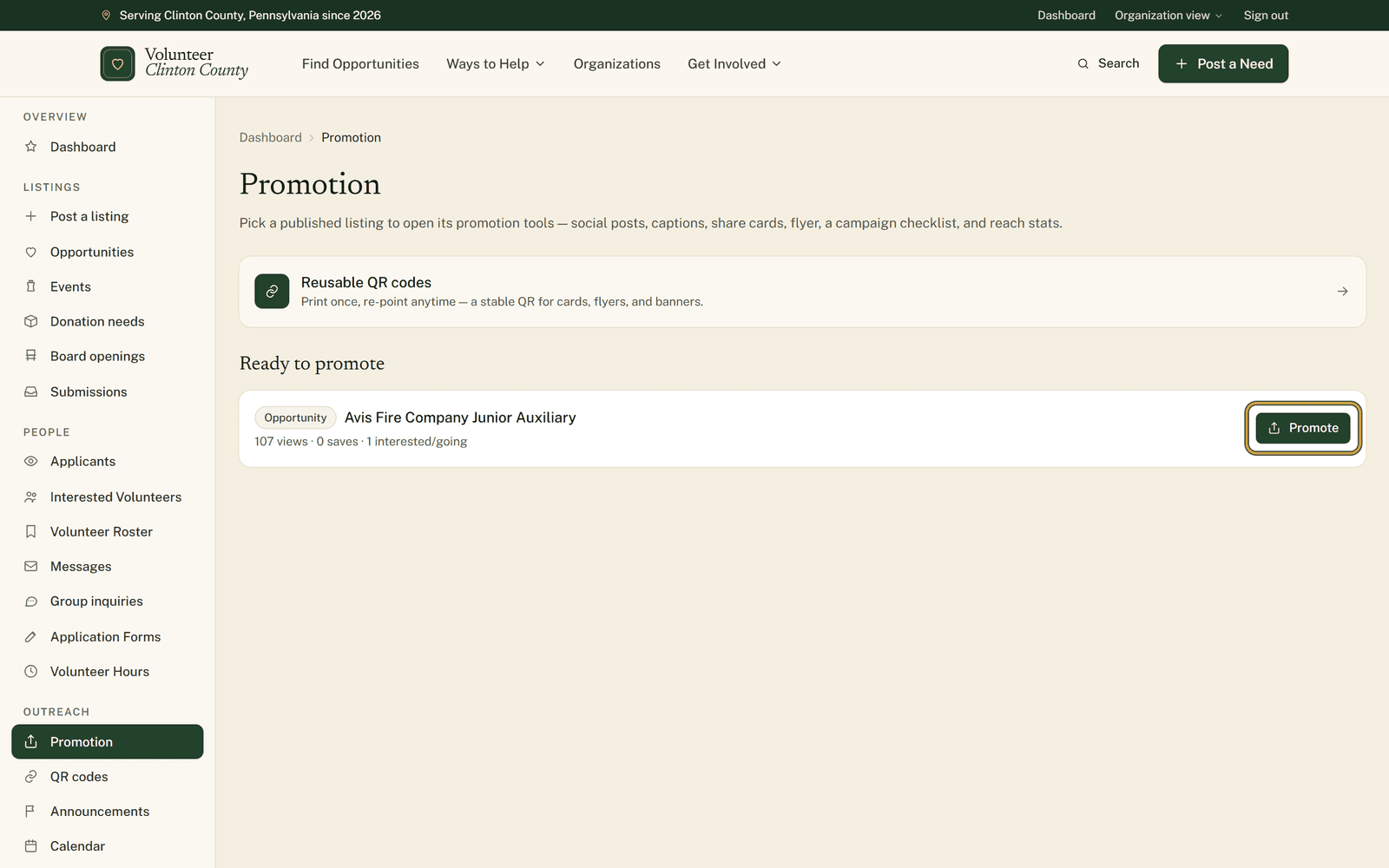
"Promotion" sits in your organization menu. Published listings appear under "Ready to promote", each with a "Promote" button that opens its own page of tools. Anything still a draft, submitted, or marked needs changes waits lower down under "Needs publishing first" with a link to finish it, since there is nothing public yet for a caption or a QR code to point at. A listing that has already expired falls into neither group and drops off this page altogether, so if you still need the help, post it again.
Captions and images
Under "Ready-to-paste posts", "Copy" puts the short post or the longer post on your clipboard, ready for your Facebook page or your newsletter. In the "Print & share kit" section, "Download" pulls the square image for a normal feed post, the tall one for a story, or the wide link card. "Print flyer (with QR code)" opens the letter-size version for the bulletin board.
None of it goes out on its own. The site writes the words and renders the images, and the posting stays with you, on your page, in your voice, on your schedule. The checklist is there for the rhythm that gets forgotten: the announcement, the reminder a week out, the final call, the day-of details, the thank-you afterward.
Which QR code to print
The square on a listing flyer is generated as the flyer prints and points straight at that listing's web address. Once the listing comes down, that paper leads to a page that no longer exists. Fine for a barbecue flyer, since the paper and the listing end the same weekend.
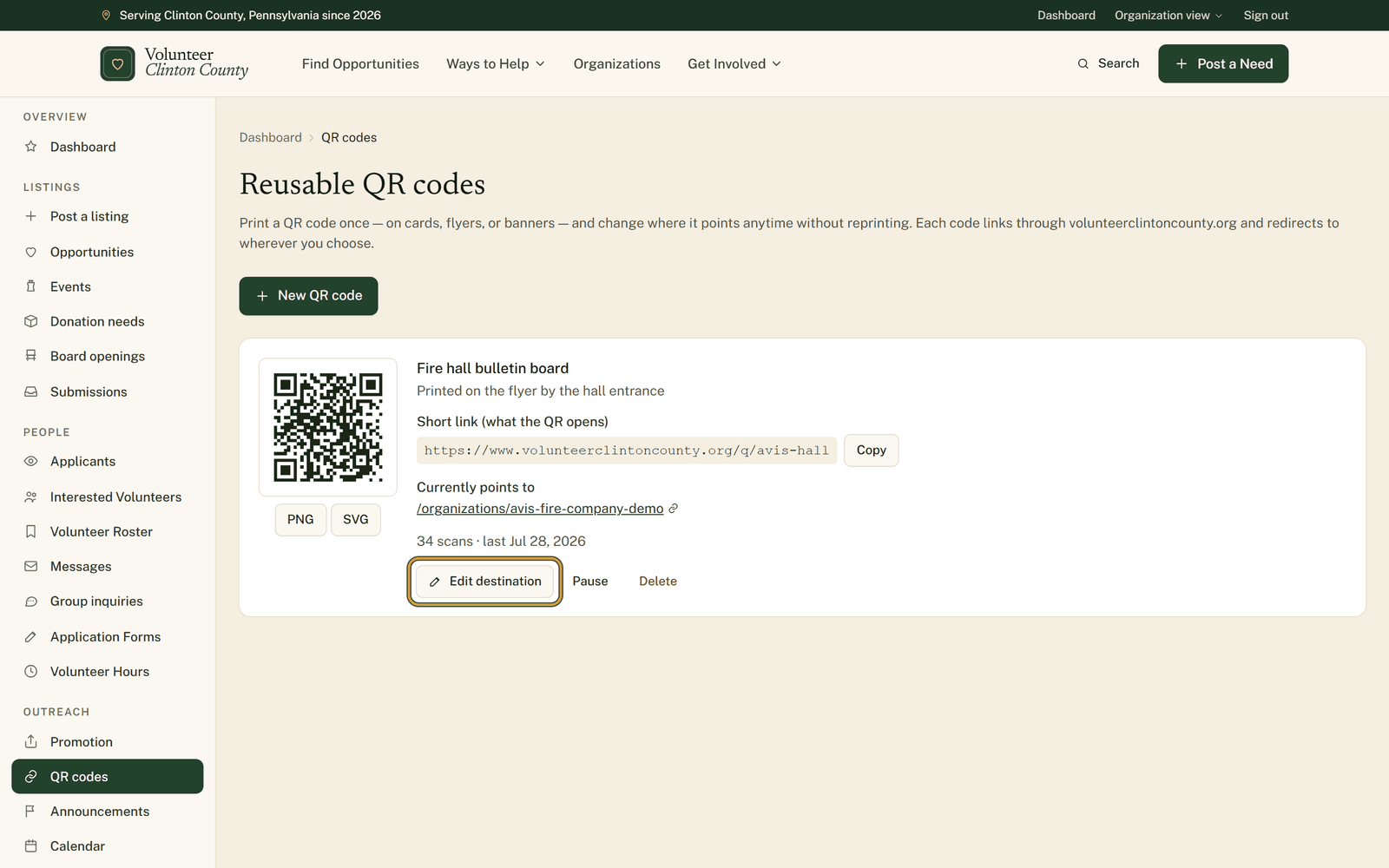
For anything meant to stay up longer, use the "QR codes" page instead. "New QR code" asks for a "Title" and a "Destination", and the code it creates points at a short link on the site rather than at any one listing. "Edit destination" sends that short link somewhere new whenever you need, and the printed square keeps working. A sign in a church vestibule you would rather not print twice should carry one of these. Creating and re-pointing codes is limited to owners, managers and posters.
Every screen named above is written up click by click, with screenshots, at https://www.volunteerclintoncounty.org/help/promotion-kit.
The auxiliary in Avis wrote the barbecue up once. The caption for the Facebook page, the image sized for a story, and the flyer for the borough building all came out of that same listing. Open your promotion tools and the same page is waiting on whatever you published last.