Every published listing comes with a ready-made promotion kit
Publish a listing and the site hands you captions, share images, and a printable QR flyer to post yourself.
Every published listing gets a promotion page holding a short post, a longer post, three downloadable share images, and a flyer that prints on letter paper with a QR code. The same page keeps a campaign checklist and a running view count for that listing. It does not post anything for you: you copy what you want and put it on your own Facebook page, in your newsletter, or on the corkboard.
Who this is for: Any organization with a published listing and one person who handles the Facebook page, the newsletter, or the bulletin board.
Before you start: A listing that is already published. Drafts and listings still in review are held back until they go live.
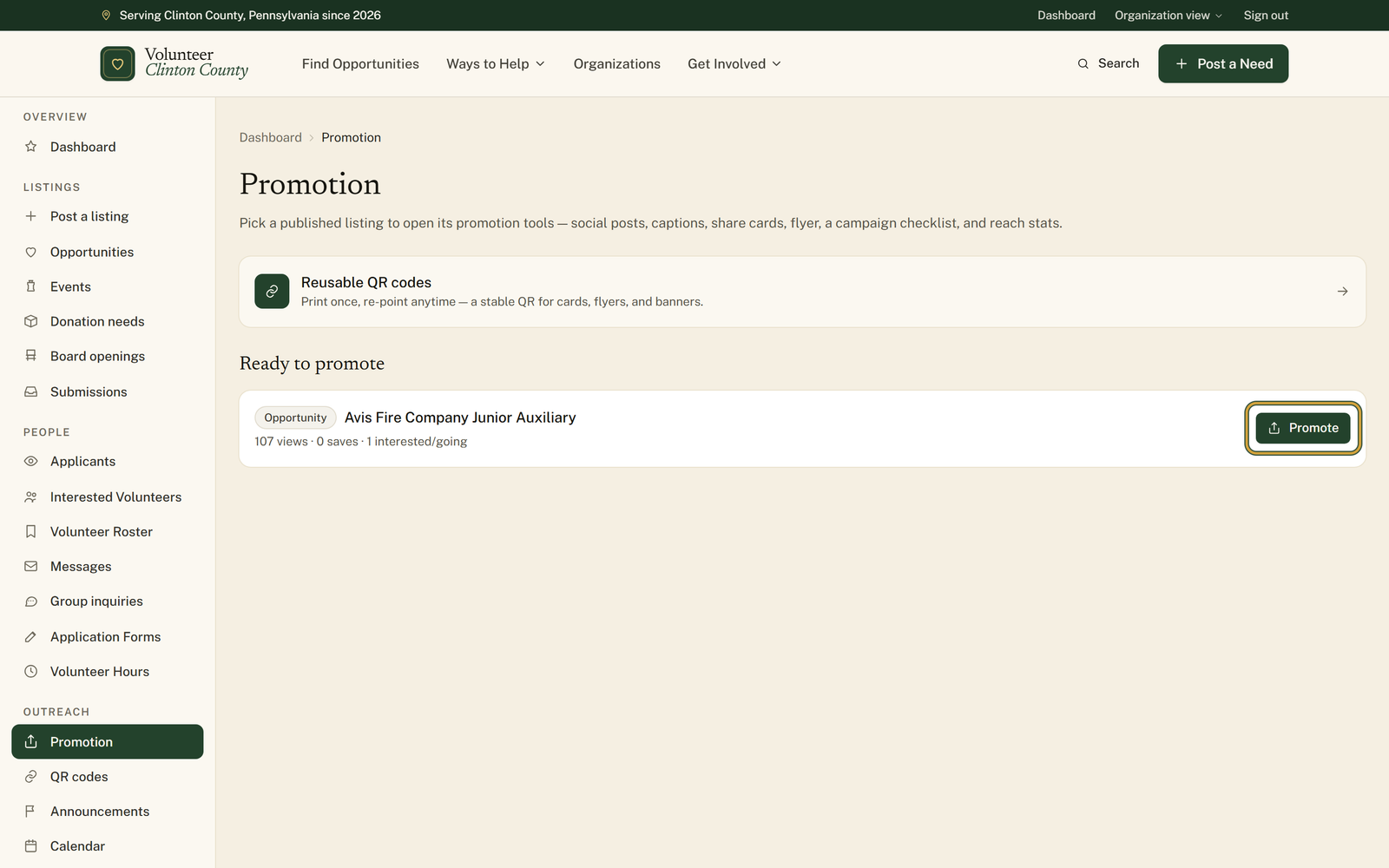
- 1
Open "Promotion" from your organization menu and find the listing under "Ready to promote".
- 2
Press "Promote" beside that listing to open its own page of tools.
- 3
Under "Ready-to-paste posts", press "Copy" next to the short post or the longer post, then paste it onto your Facebook page or into your newsletter.
- 4
In "Print & share kit", press "Download" under "Square post · 1080×1080" for a feed post, or "Story · 1080×1920" for a story.
- 5
Press "Print flyer (with QR code)" to open a letter-size flyer you can print for a bulletin board.
- 6
For a code you can re-point later, open "QR codes", press "New QR code", fill in "Title" and "Destination", then press "Create QR code".
- 7
Use "Edit destination" whenever that code should send people somewhere new; the printed QR keeps working.
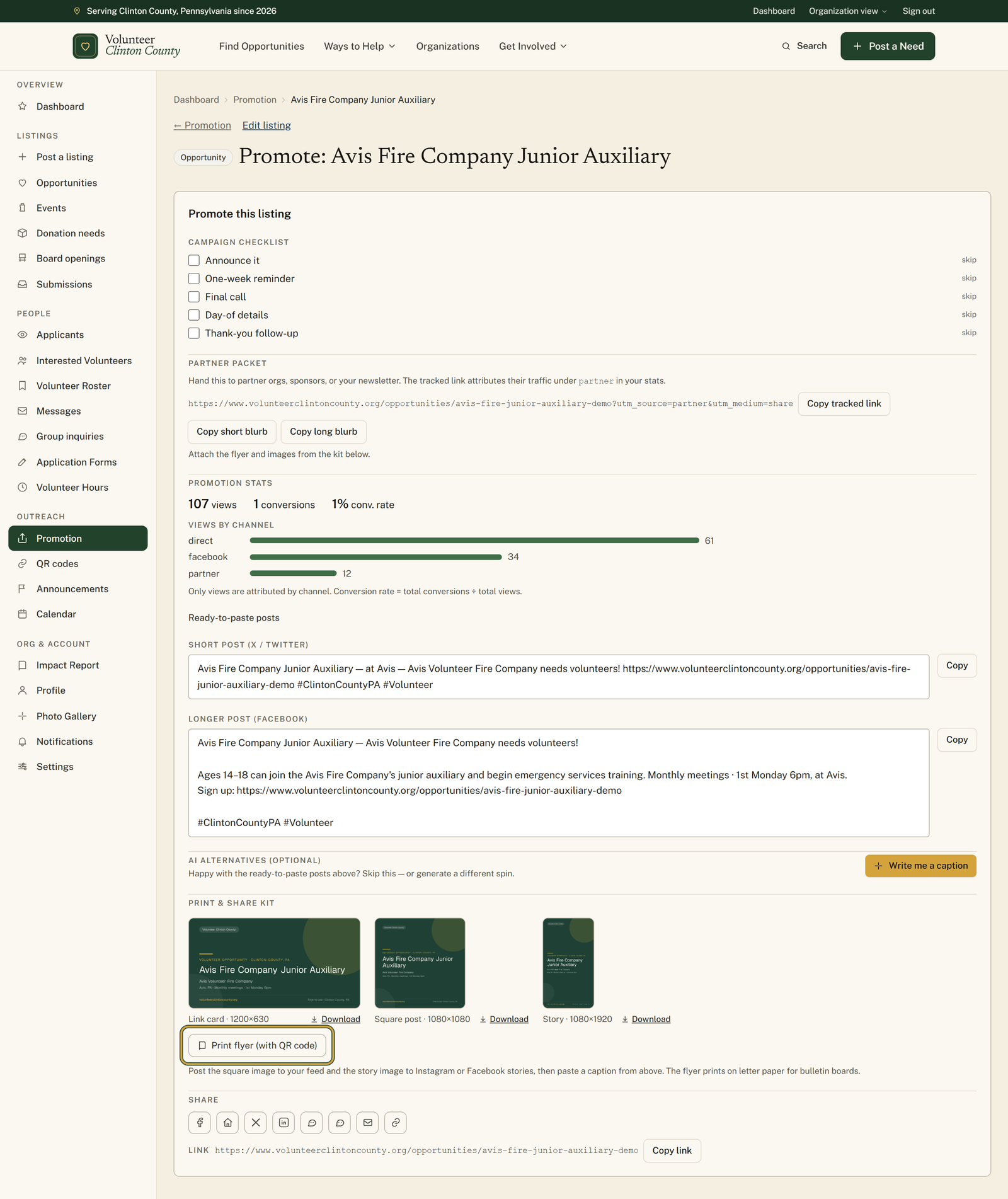
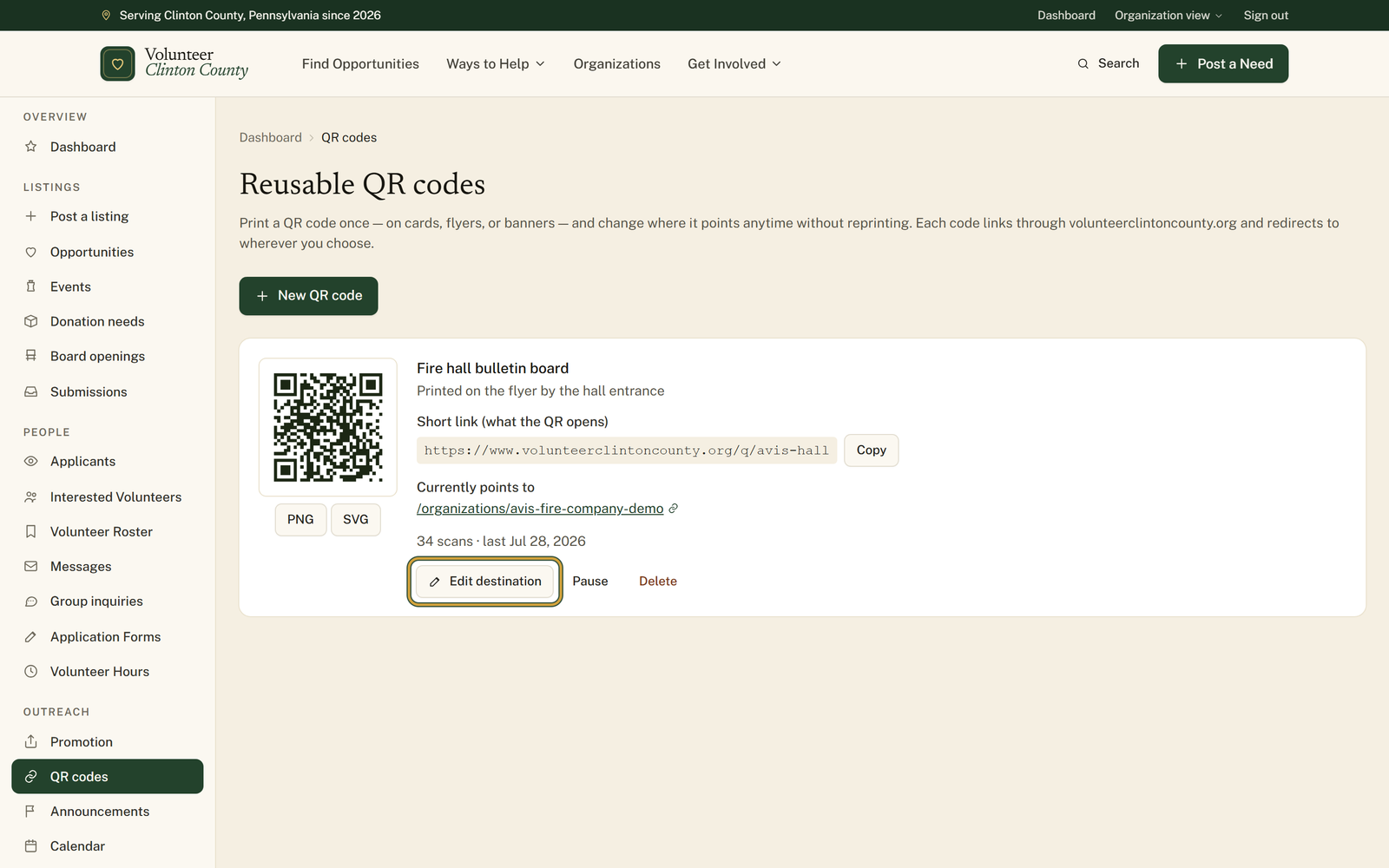
You'll know it worked when: Your caption is on the clipboard, the share images are in your downloads, the flyer is ready to print, and the reusable code starts counting scans.
Watch out for: The QR code printed on a listing flyer is baked to that one listing's web address. It is not one of your reusable codes, so once the listing comes down that printed flyer leads to a page that no longer exists. Put a reusable QR on anything meant to outlast the listing.
What this doesn't do: It does not post to your Facebook page, your Instagram, or anywhere else on your behalf. It writes the words and renders the images; the posting stays with you.
No. The promotion page writes the posts and renders the images, and every one of them has a "Copy" or "Download" button. You are the one who puts them up, on your own page, on your own schedule.
Only published listings have promotion tools, because there is nothing public to point at yet. Anything still a draft, submitted, or marked needs changes appears lower down under "Needs publishing first" with a link to finish it. A listing that has already expired is in neither group and drops off this page altogether, so post it again if you still need it.
The flyer QR is generated when the flyer prints and points straight at that listing. A reusable code from the "QR codes" page points at a short link on the site, and you can change where that short link sends people any time with "Edit destination". Print the reusable one on anything you do not want to reprint.
Use "Square post · 1080×1080" for a normal Facebook or Instagram feed post, "Story · 1080×1920" for a story, and "Link card · 1200×630" when you want a wide image. The flyer is the one for paper.
Yes. The "Partner packet" section has a tracked link to copy, plus a short blurb and a long blurb. Views that arrive through that link show up under partner in the Views by channel list on the same page. Only views are attributed that way, not sign-ups.
Creating and re-pointing QR codes is limited to owners, managers, and posters. A viewer on the organization sees a note instead of the tools, so ask an owner or manager to change your role or to make the code for you.
Volunteer Clinton County is a community directory. You browse what local organizations post and contact them directly. More guides