Print a verified volunteer hours report for a grant application
Approve the hours your volunteers log, then total them over any date range, break them out by listing and by month, and print it for the grant packet or the board binder.
The foundation application is due Friday. The historical society in Lock Haven has the narrative written and the budget attached, and then there is the question near the end of the form: volunteer hours over the past year, broken out by program.
The treasurer knows what that question used to cost. The sign-in binder, a calculator, an evening at the kitchen table adding up columns, and a number written into the box with the private hope that it was close enough to defend.
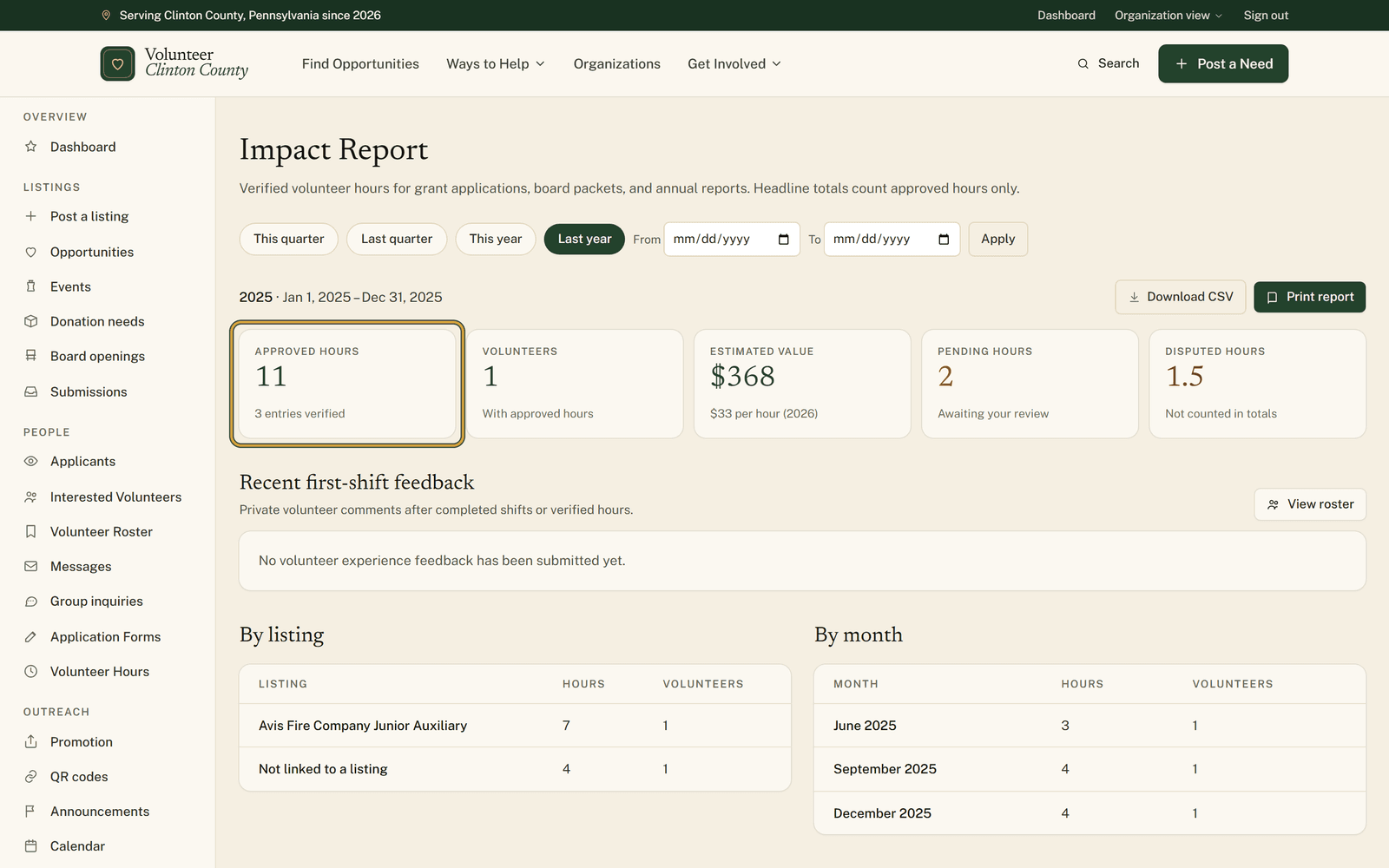
This year it takes a minute. She opens the Impact Report, picks "Last year", and reads the hours for the archive project and the walking tours off the "By listing" table. Printed, into the packet, done while Friday is still a workday.
What the report adds up
The Impact Report totals the volunteer hours your organization has approved over any date range, breaks them out by listing and by month, and prints as a report you can put in a grant packet or a board binder.
Hours reach it two ways. A volunteer logs them, or someone gets checked in at one of your events and that shift is recorded for them. Either way the entry arrives waiting on you, and nothing counts until your organization approves it. Work that was never recorded here will not appear in the total, however real it was.
Approving happens on the "Volunteer Hours" page in your portal menu, where you press "Approve" on each entry you can vouch for. Clear that queue before you print. The report page helps you see whether you have: "Pending hours" and "Disputed hours" sit beside the headline number, so anything still waiting on review is visible rather than quietly missing.
Matching the period the funder asked for
Four buttons cover "This quarter", "Last quarter", "This year" and "Last year". When a funder's reporting period ignores the calendar, type the dates into "From" and "To" and press "Apply". Every number on the page follows the range you choose, and so do the printed report and the spreadsheet.
The copy that goes in the packet
"Print report" opens the "Volunteer Impact Report" in a new tab, and "Print / Save as PDF" gives you the file or the paper copy. It carries your organization's name, the reporting period, the total approved hours and volunteers, and the same hours listed by listing and by month.
One number does not make the trip. The "Estimated value" dollar figure appears on the screen version only, so when a funder wants the dollar amount, copy it across into the application yourself.
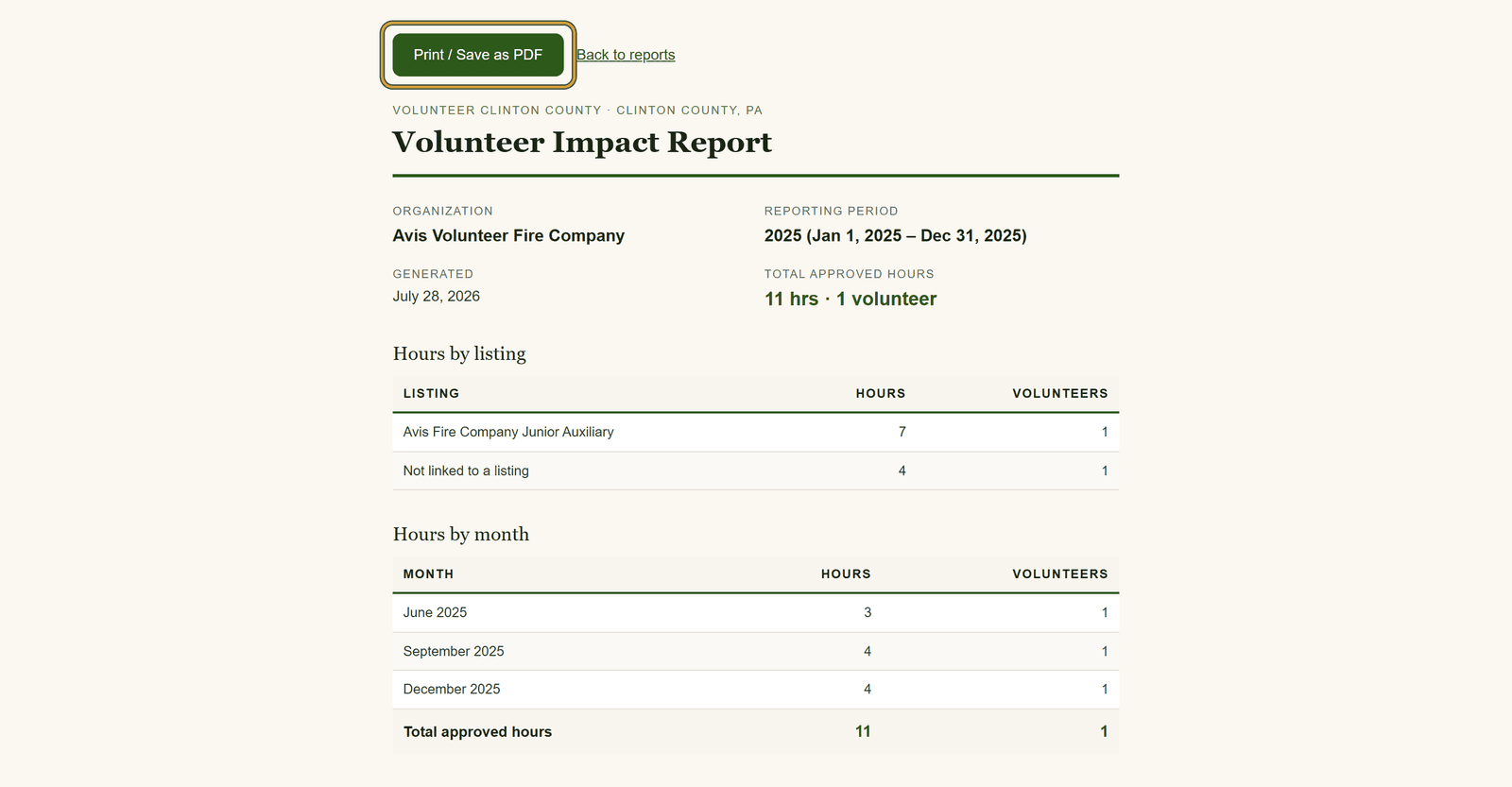
The claim the report makes is a narrow one, worth understanding before you attach it to anything: these are the hours recorded here that your organization approved. It is not an official certification, and it does not count everyone who has ever helped you. Hours that only ever landed on a paper sheet in the pavilion stay outside it.
The detail behind the number
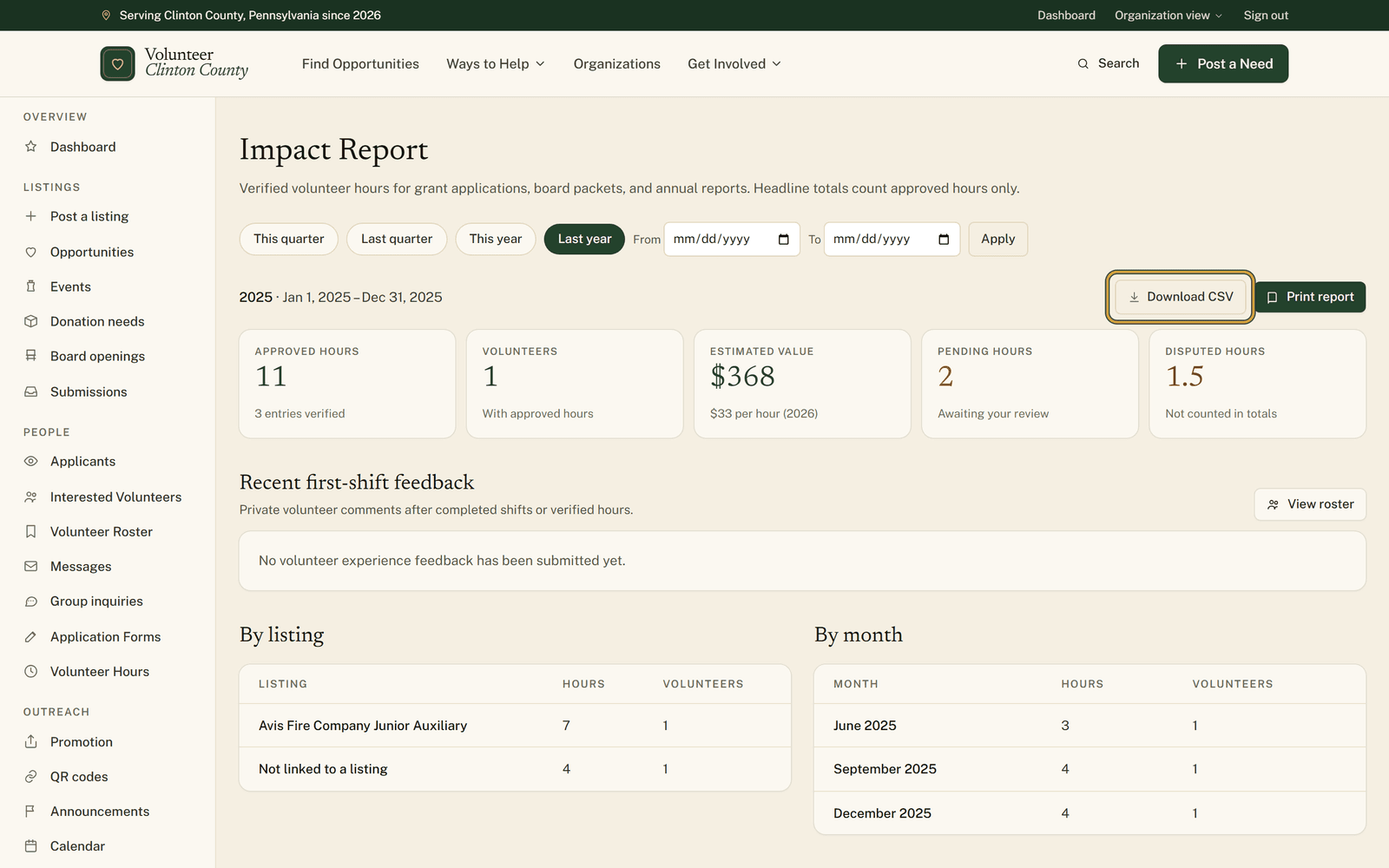
"Download CSV" gives you one row per entry in the date range: volunteer, date served, hours, start and end time, location, listing and status. Unlike the totals, it includes pending and disputed entries, which is what the status column is for, and the file is named for the range you chose. Hand it to the board member who wants to check the arithmetic, or keep it beside the application as your working copy.
Every screen and button named here is written out in order, with pictures, at https://www.volunteerclintoncounty.org/help/impact-report.
The treasurer still keeps the sign-in binder for the work that never made it onto the site. What changed is that the number in the box came off a screen this time, with a table behind it she could show a reviewer. Open your Impact Report and pick Last year.