How to print a listing as a flyer for the bulletin board
Every listing has a print page behind it: a letter-size sheet, a details box, and a QR code that still works after somebody photographs the paper. Here is where the link is, and where it is not.
The corkboard inside the post office in Renovo is about three feet across, brown, and soft with old pinholes. A township meeting notice covers half a hunting lease. A lost-dog flyer has curled at the corners since spring. None of it was designed by anybody, and all of it gets read: the wall by the PO boxes is where you stand while you wait.
Say a food pantry needs drivers through the fall. Somebody prints the flyer for that listing and pins it up. By supper a neighbor has photographed it and dropped the picture into a group chat. Three weeks later a stranger scans that photo off a phone screen and lands on the listing, with whatever the pantry has changed about it since. The paper is a snapshot of the day it printed. The code on it points at the listing as it stands right now.
Getting it off the screen
You find something on the site worth telling people about. Then you think about the church vestibule, the break room at work, the table by the library door, and there is no clean way to get it onto any of them. So you copy the details onto an index card and hope you got the phone number right.
What comes out of the printer
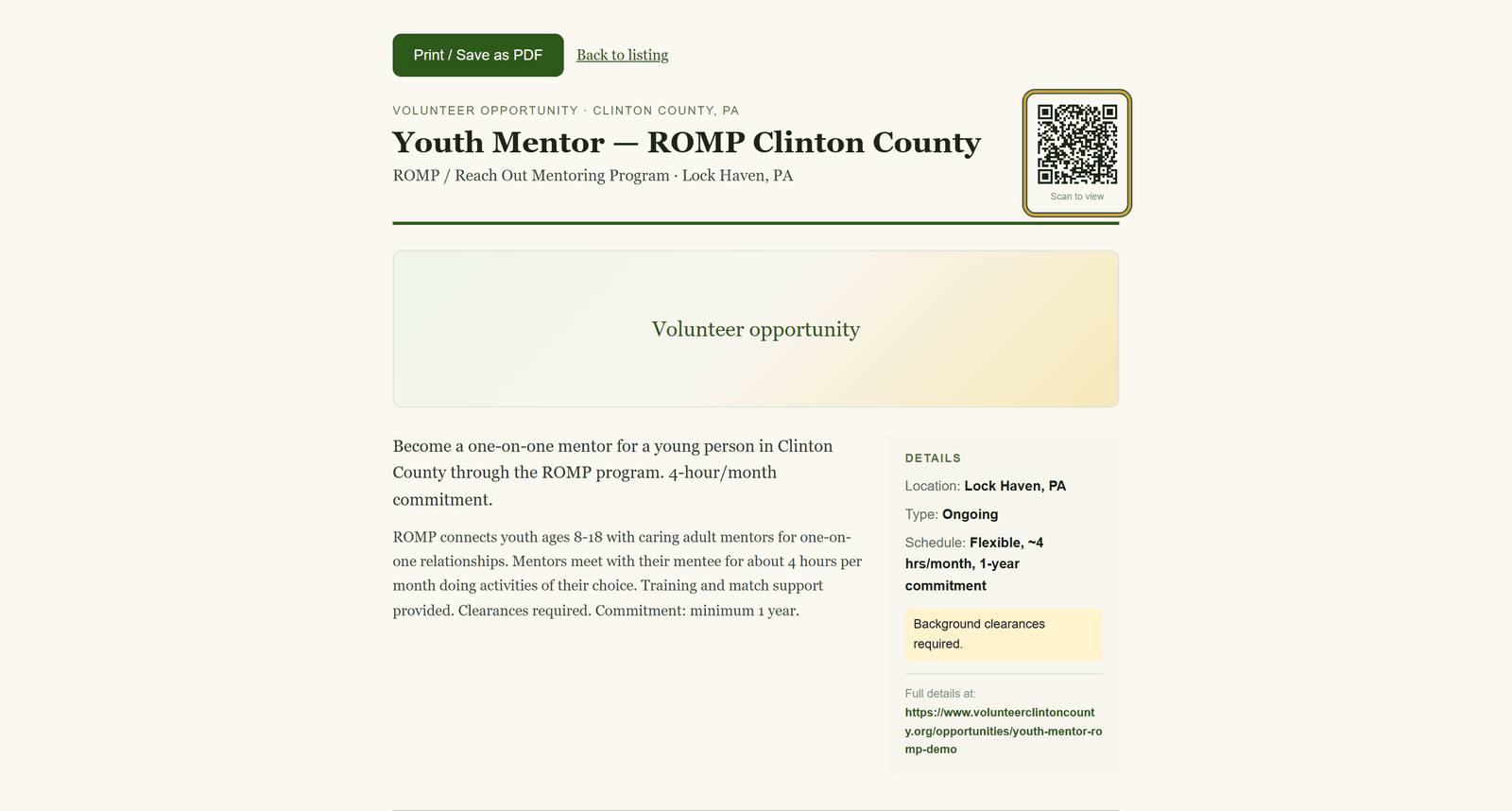
Behind every listing sits a print page. It carries the title, the organization and its town, the summary, a details box, and a QR code that opens the listing page when someone scans it. The details box holds the location, the schedule, and whatever contact the organization chose to publish. The site's menus and footer are stripped off, so what feeds through the printer is only the flyer, on one letter-size sheet.
That sheet is fixed. You cannot edit the wording or swap the photo, and there is nowhere to add your own logo. It prints what the organization published that day, which is what keeps it accurate: no design file sits somewhere going stale when the schedule moves.
Anyone can print one, for a church bulletin board, a break room, a library table, or a school hallway. The flyer page opens without signing in, same as the listing page it came from.
Where the link is
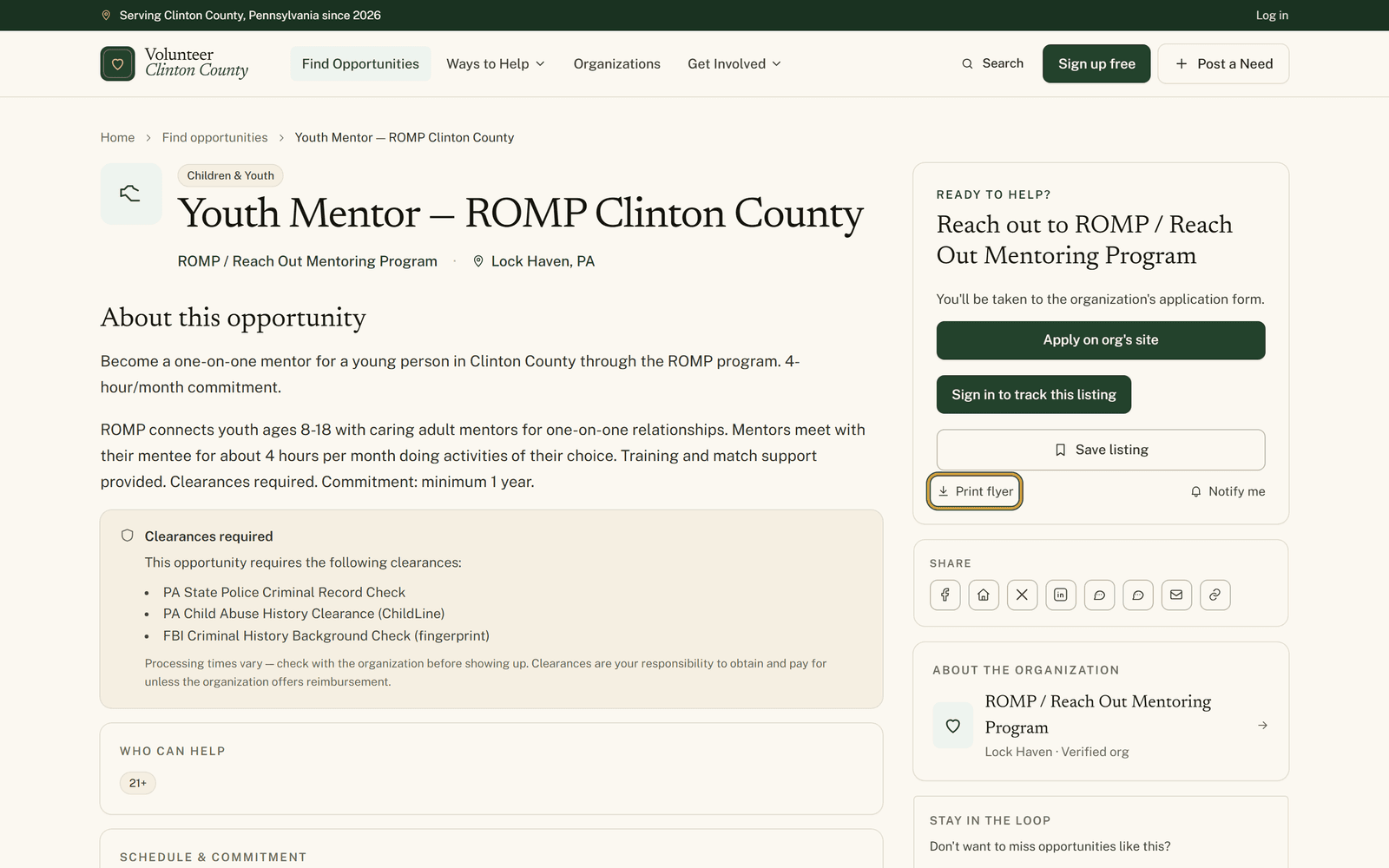
On a volunteer opportunity page, look at the sidebar card headed "Ready to help?". The "Print flyer" link sits right under the "Save listing" button. Drop-off site pages carry it too, and those two are the only public pages that show it. An event, a donation need, or a board opening has the same sheet waiting behind it, but you have to ask for it directly: add /flyer to the end of the listing address and it comes up.
The QR code is the part that keeps working after the paper leaves your hands. It holds the listing's plain web address and nothing else. No tracking tag rides along, so a scan off a photo of your flyer behaves the same as a scan off the paper itself. That only holds while the listing is published, though. Once it expires, the flyer page goes with it and the code lands on a not-found page, so take the paper down when the need is filled. When the dates on your copy have moved on, print a fresh sheet.
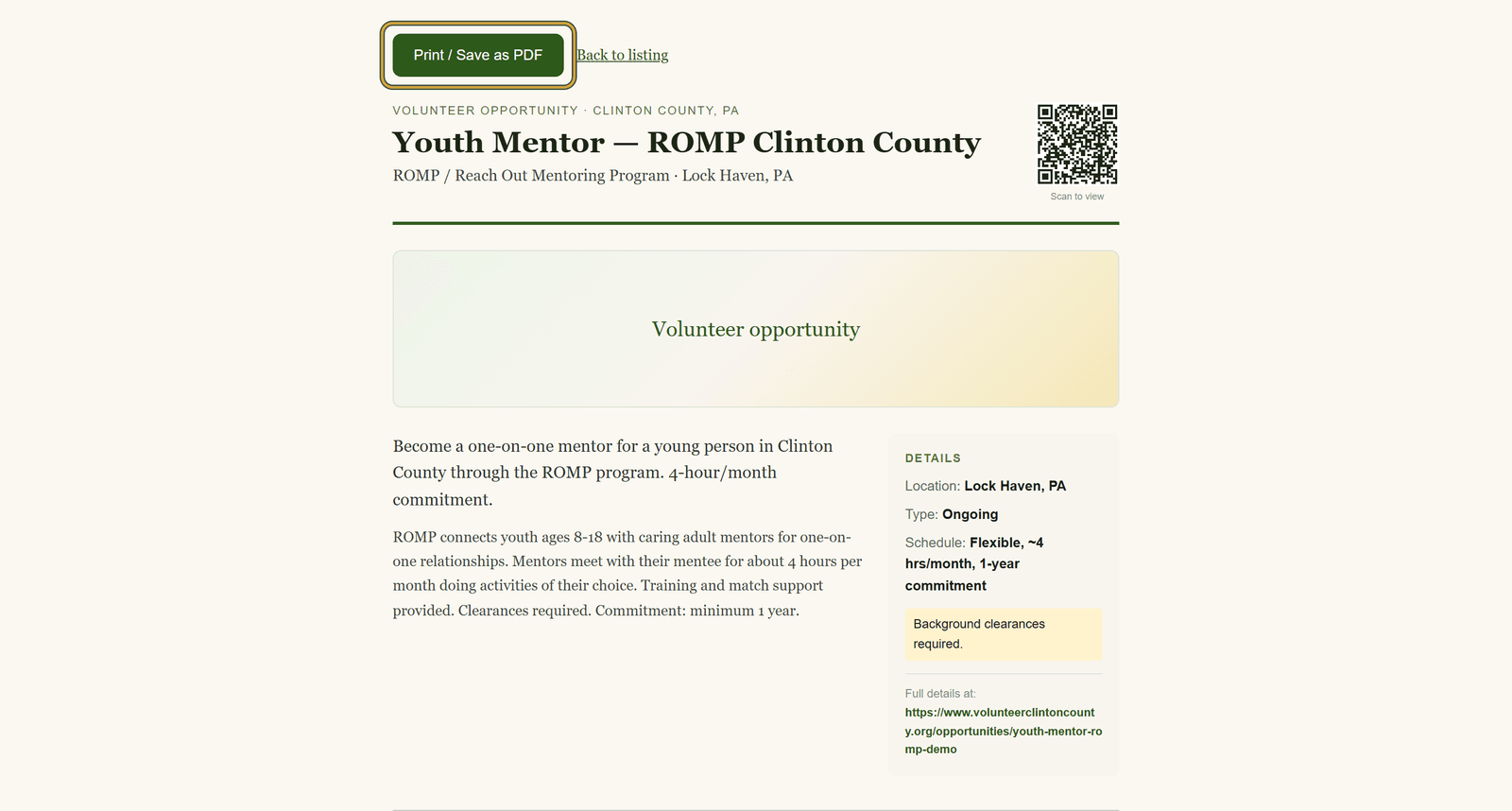
The green "Print / Save as PDF" button and the "Back to listing" link beside it stay on the screen and never reach the printer. The sheet also spells the web address out after "Full details at:", for anyone who would rather type than scan.
The help page has a picture of every click, in order, if you want to see it done first: https://www.volunteerclintoncounty.org/help/printable-qr-flyer
Whatever you pin to that corkboard will be half covered by a township meeting notice inside a month. By then somebody has already photographed it, and the code in the picture still works. Browse opportunities and print one for the board you walk past.