Filters for access needs and who an opportunity suits
Two sections of the filter panel answer the questions people are least comfortable asking an organization out loud.
The "Who's it for?" and "Requirements" sections let you keep only the listings suited to students, groups, families or seniors, and only the ones that accept court-ordered service, need no clearances, provide training, involve no physical labor or mention wheelchair access. Every one of those boxes reads an answer the organization gave when it posted. A listing that skipped the question is dropped by the filter along with the ones that answered no, so these are good for finding and poor for ruling out.
Who this is for: Anyone with a real constraint: a wheelchair, a bad back, no driving licence, court-ordered hours to complete, or a nine-year-old who wants to come along.
- 1
Open the "Filters" panel on the opportunities page. "Who's it for?" is already open, holding "Good for students", "Good for groups", "Good for families", "Good for seniors" and "Skill building".
- 2
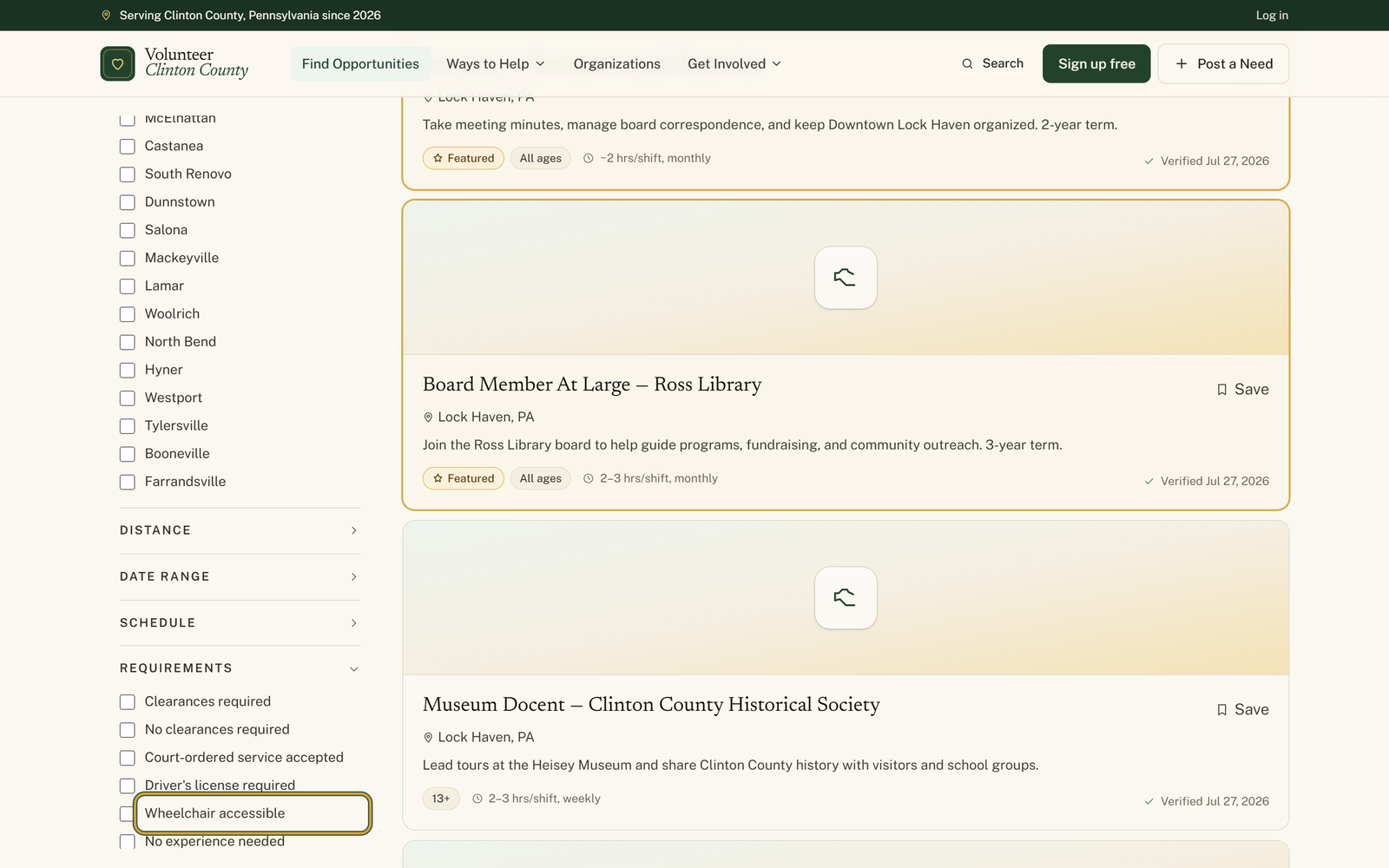
Click "Requirements" to expand it for the practical constraints, among them "No clearances required", "Court-ordered service accepted", "Driver's license required", "No experience needed", "Training provided" and "No physical labor".
- 3
Tick "Wheelchair accessible" there if you need it, then open each result and read the access note for yourself, because the note is what that filter searched.
- 4
Click "Setting" and pick one of "Indoor opportunities", "Outdoor opportunities", "Remote / virtual" or "In-person". Tick two that contradict each other and the setting filter switches itself off, so pick one.
- 5
Click "Volunteer age", which is collapsed like the two above it, then type a real age into "Your age" and tick "Include opportunities that allow younger volunteers with a guardian" when an adult is coming too.
- 6
Read the green badges above the results to see what is on, and press "Clear all" when the list has come back shorter than it should be.
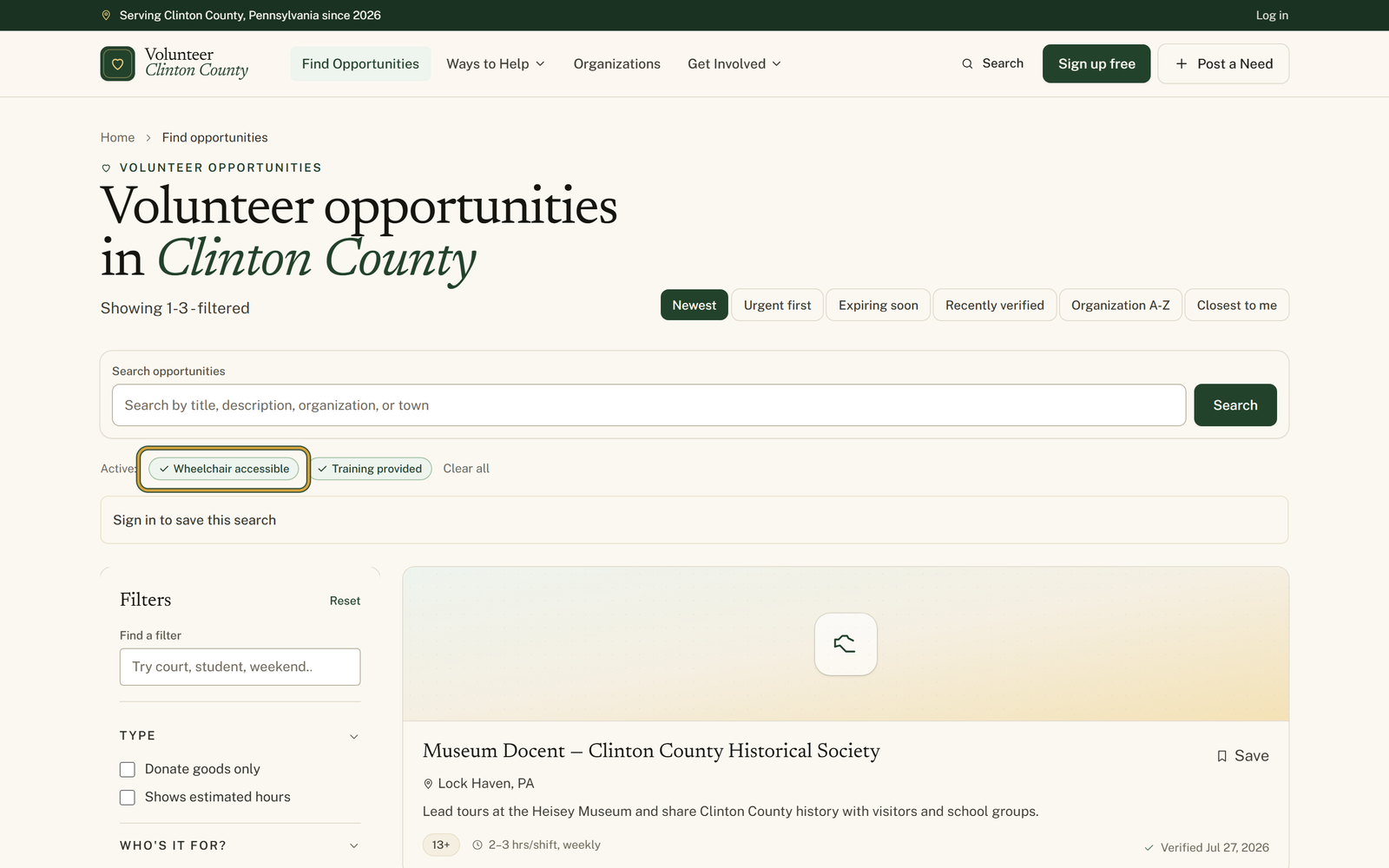
You'll know it worked when: A shorter list where every listing answered the question you filtered on, with a badge above the results for each filter you ticked.
Watch out for: A blank box is not a no. These filters read what an organization filled in when it posted, and plenty of listings simply never answered. Tick a filter and the quiet ones disappear alongside the ones that genuinely do not fit, which is why a short result is often a sign of thin listings rather than a thin county.
What this doesn't do: Not an accessibility audit. "Wheelchair accessible" keeps only listings whose organization answered Yes to wheelchair access, so it can only be as good as that answer, and it cannot tell a ramp at the entrance from an accessible restroom. Read the note, then ask the organization before you rely on it.
It looks for the word wheelchair in the accessibility note the organization typed on the listing. That is the whole of it. A site with a ramp and a level entrance described in other words will not show up, and a note warning that there is no wheelchair access matches the same as a note promising there is. Use it to shorten the list, then read the note.
Usually it means nobody answered. The filters cannot tell the difference, so both get dropped. If a listing looks right in every other way, it is worth an email even though your filter hid it.
That pair switches the setting filter off altogether, so the results go back to everything rather than narrowing. The badges above the results still say Indoor and Outdoor, which is what makes it look broken. Untick one. Indoor on its own also keeps listings marked both or varies, so you are not losing the flexible ones by choosing it.
Not quite. It matches organizations that said yes and organizations that said case by case, so some of those results are a maybe. Bring the paperwork question to the organization early rather than on the day.
A listing whose clearance list was filled in and left empty. A listing where nobody touched the field at all is in neither the clearances-required results nor the no-clearances results, which is another reason a filtered list can look thinner than the directory really is.
"Good for families" under "Who's it for?" is the first stop. Then use "Your age" under "Volunteer age" with the child's actual age and tick the guardian box, which relaxes the minimum age on listings that allow a supervised child. It never changes a maximum age.
Volunteer Clinton County is a community directory. You browse what local organizations post and contact them directly. More guides